

Introduction: How to Install a Forex Robot on MT4
Wondering how to install a forex robot to MT4? It is a quick and simple process. To do this, open the MetaTrader 4 (MT4) platform, click “File” in the top left, and click “Open Data Folder.” Next, in the new window, open the folder that says, “MQL4” and then open the folder that says “Experts.” In this folder, paste the downloaded forex robot file which is most likely an .ex4 or .mq4 file.
Once you have done that, go back to the MT4 platform and right-click “Expert Advisors” in the navigator panel and click “Refresh” from the menu options. Finally, make sure that the ‘Auto Trading’ button in the top section of the platform is enabled and then drag the forex robot to the desired currency chart.
At EarnFX.ng, we know that many newbies in Nigeria have little to no experience with setting up automated trading software. All it takes to get the software running is understanding which folders the files go into. To help you out, we have prepared this tutorial that will guide you through the setup process in great detail.
Important Notice: This article is for educational purposes only. Trading is risky and automated trading does not make you money. Do not consider this financial advice and only trade with money you can afford to lose.
Table of Contents
What is an MT4 Forex Robot?
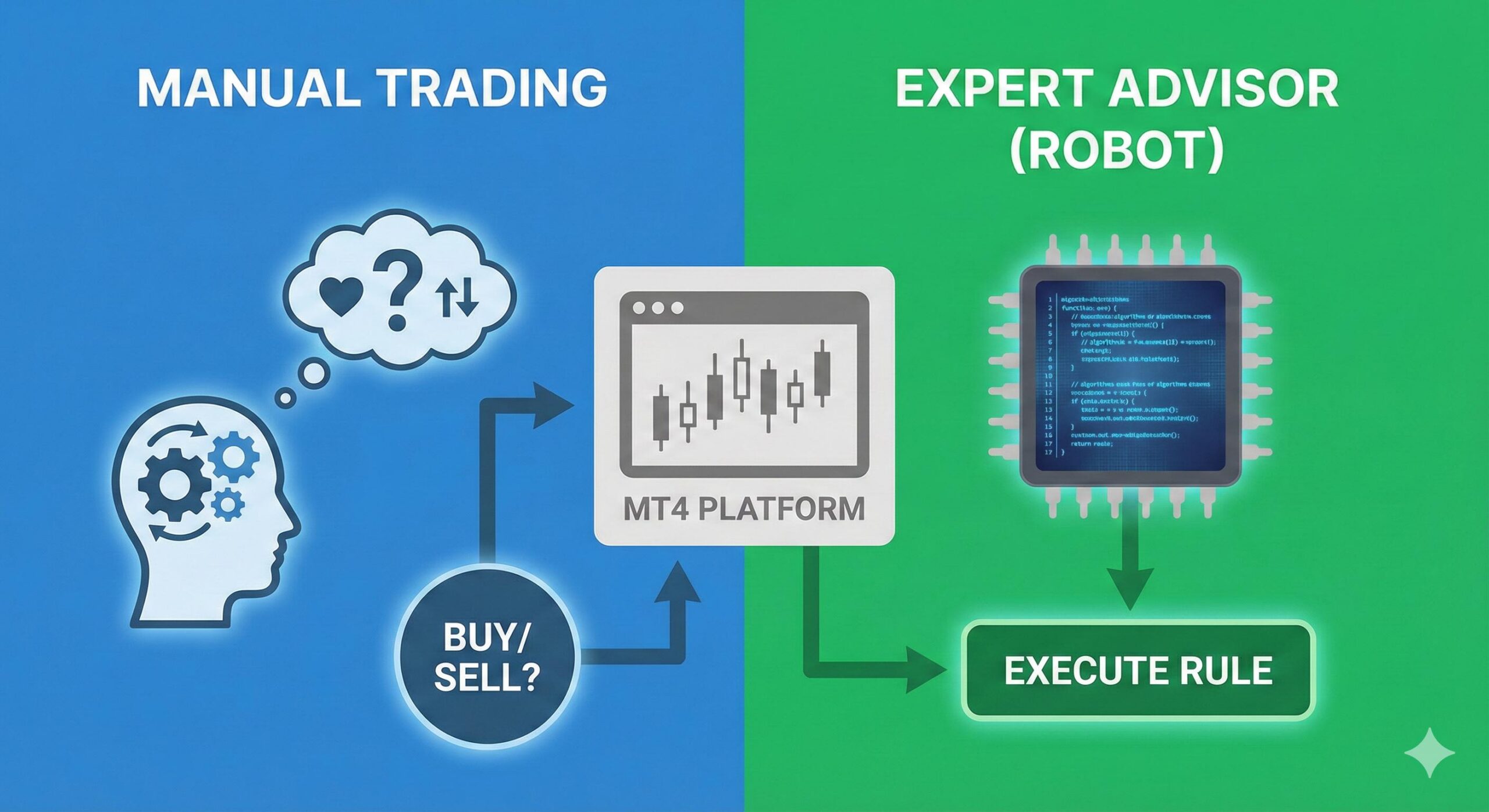
Before going further into the details of the installation steps, it makes more sense to consider what it is the installation process is actually helping complete. With regard to the MetaTrader 4 platform, a forex robot is referred to as an Expert Advisor (EA).
An EA is a piece of software that is coded to follow a particular guideline. Therefore, what you are doing when you install a forex robot on MT4 is attaching those instructions to your trading chart. The software interprets the market (like price movement and other indicators) and executes certain functions based on the instructions given.
An important thing to note about the software is that it is not fully functional, and it is not able to follow global news events. Therefore, the steps to install a forex robot on MT4 should also consist of steps to monitor the robot and manage the risk involved.
Preparing for Installation: What You Need
To successfully follow the steps for how to install a forex robot on MT4, you must have a few things ready beforehand:
- A MetaTrader 4 Platform: You must have the MT4 software downloaded and installed on your desktop or laptop computer. (Note: You cannot install custom forex robots on the mobile app version of MT4).
- The Forex Robot File: You need the actual file of the Expert Advisor you wish to use. These files come in two main formats:
- .ex4: This is a compiled file, meaning it is ready to run, but the underlying code is locked and cannot be edited.
- .mq4: This is the source code file. MT4 can read this and will automatically compile it into an .ex4 file when you refresh the platform.
- A Demo Account: At EarnFX.ng, we strongly advise beginners to only install and test new forex robots on a demo account first. This allows you to see how the installation works without risking any real money.
Step-by-Step Guide: How to Install a Forex Robot on MT4
With your MT4 platform open and the EA file successfully downloaded to your PC, let’s dive into the detailed step-by-step tutorial.
Step 1: Locate and Copy Your Robot File
Locate the forex robot file on your PC (most likely, the “Downloads” folder). Right-click on the .ex4 or .mq4 file and hit Copy.
Step 2: Open the MT4 Data Folder
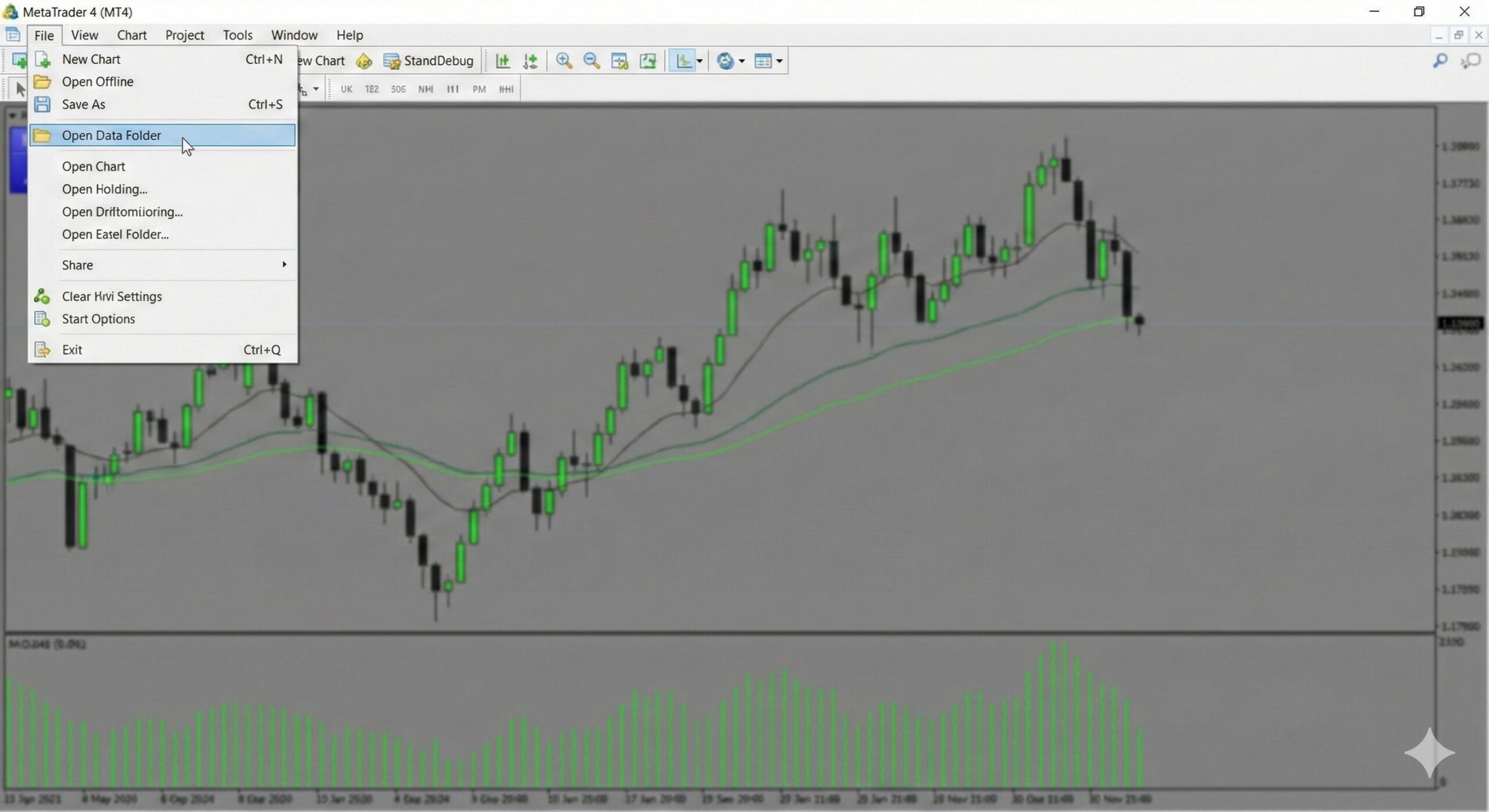
Locate your MT4 platform and go to the top-left corner of your screen. Click on File, and from the dropdown, select Open Data Folder.
Please wait as a window opens containing the MT4 platform’s internal structure.
Step 3: Paste the File into the “Experts” Folder
In the MT4 data folder window, find and double-click on the MQL4 folder. Inside this folder, you will find another folder labeled Experts. To open this folder, double-click the folder. Once the folder opens, Right-click in the empty section of the “Experts” folder and click on Paste. Your copied robot file should be listed. You’re good to go, and the folder window can be closed.
Step 4: Refresh Your MT4 Navigator
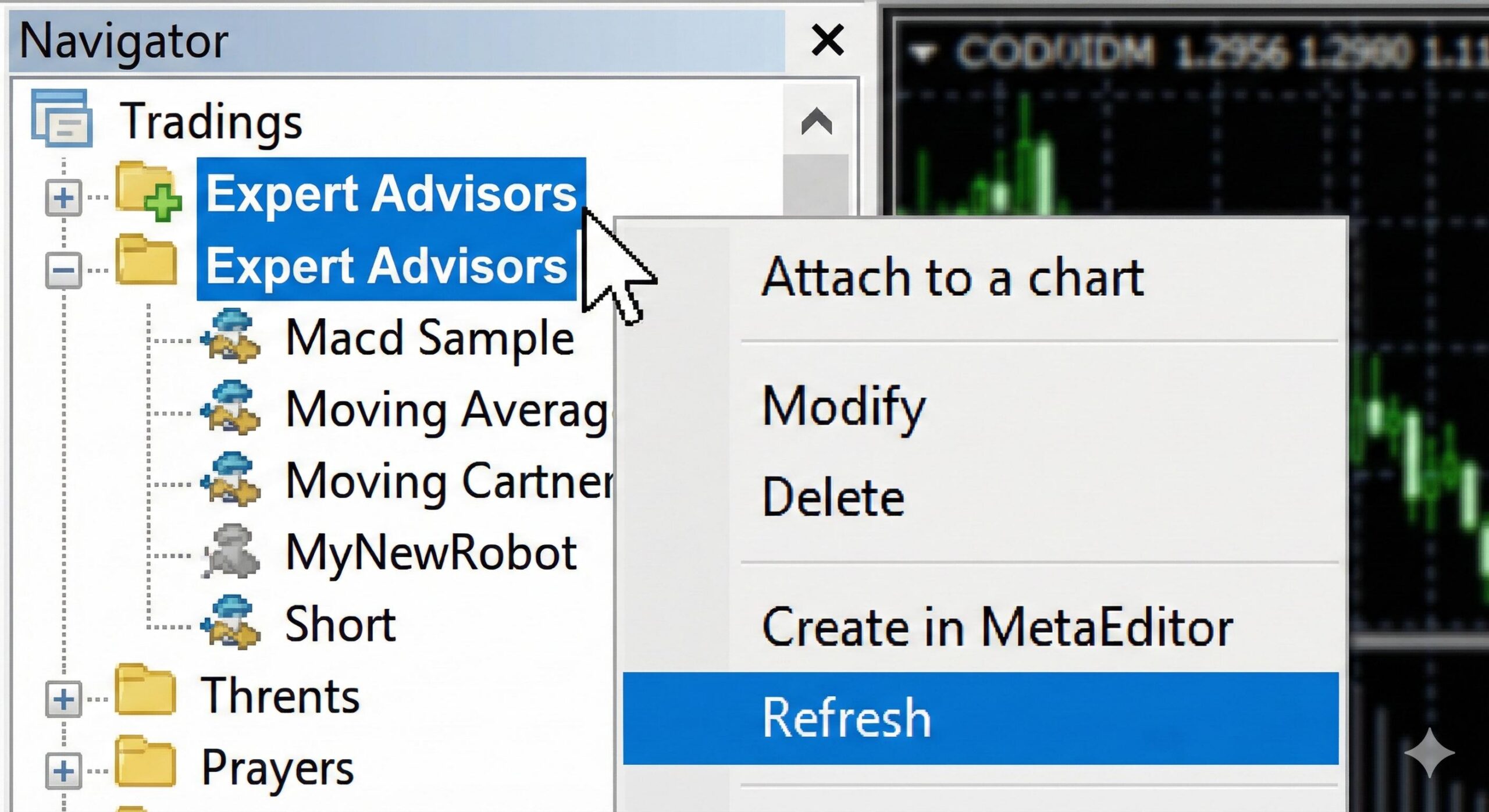
Now, go back to the MT4 platform. On the left, look for a section labeled Navigator (if you cannot see the Navigator, you can press CTRL+N on your keyboard). In the Navigator section, locate the Expert Advisors section. Do a right click on Expert Advisors and click Refresh.
After Refreshing, you should see a little plus (+) sign on the left of Expert Advisors. Click on that, and you should see your new robot.
Step 5: Enable Automated Trading
Before you attach the robot, look at the upper toolbar area of your MT4 platform. You should see a button that says Auto Trading. If the icon next to it is a red square, that means automated trading is turned off. If you click it, and the button turns green instead, that means you have now given the platform permission to allow the robots to operate.
Step 6: Attach the Robot to a Chart
To begin testing the robot, open the chart for the desired currency pair. In the Navigator panel, go to the newly installed robot, and drag it to the chart. You should see a pop-up window. In the Common tab, check the box for ”Allow live trading” and press OK.
How to Verify Your Forex Robot is Installed Correctly
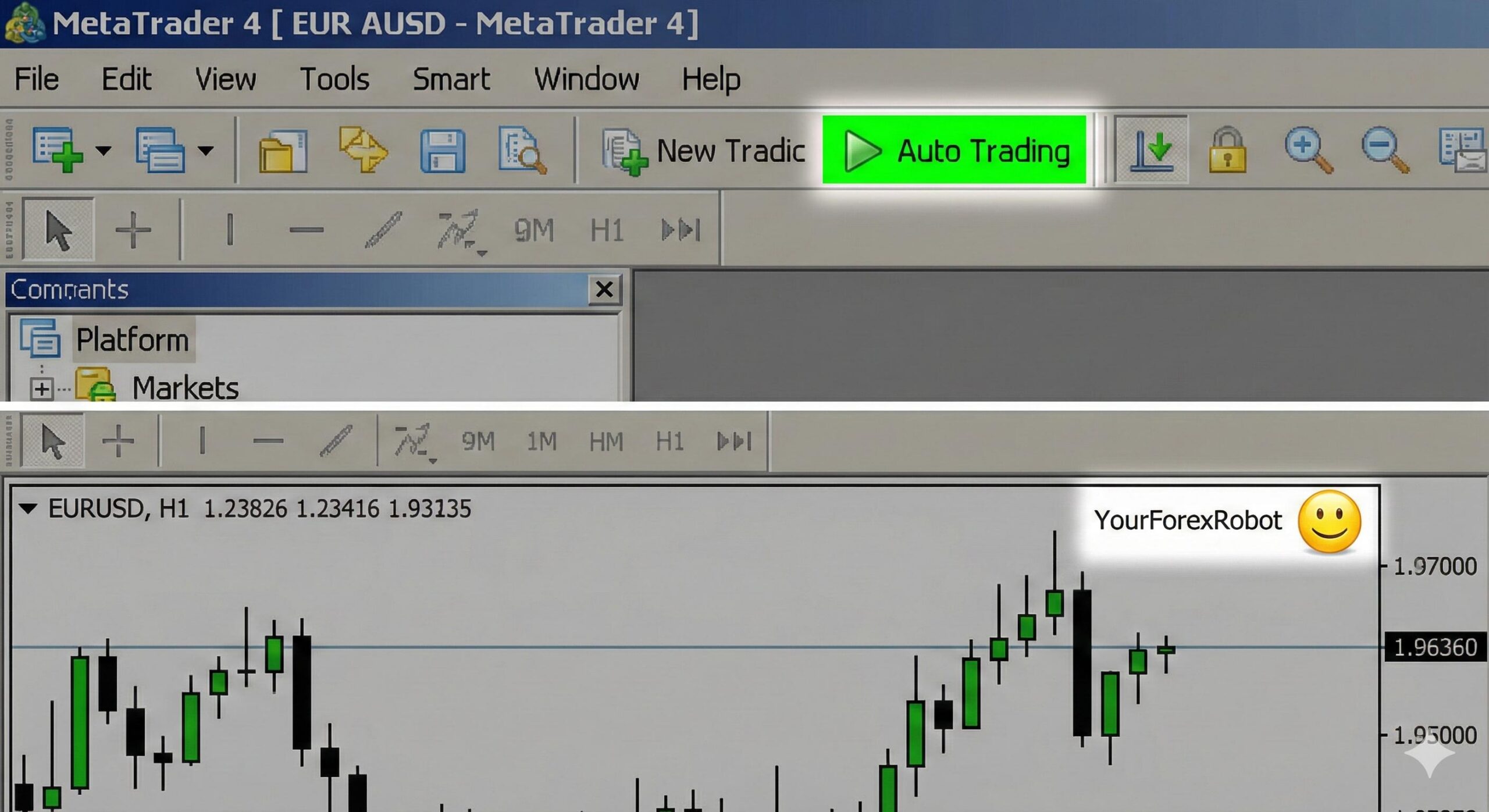
Once you have finished with the steps for installing a forex robot on MT4, you will have to check that the forex robot is working.
On the upper right-hand side corner of the trading chart, you ought to see the forex robot’s name followed by a small face.
- A Smiling Face: This means the robot is active, and installation was successful.
- A Frowning Face (Sad Face): This means that the robot is installed on the chart, but trading no trading is being done. Ensure the “Auto Trading” is on and green at the top of the MT4. Also, check the robot’s settings and ensure you checked “live trading”.
- No Face / No Name: This means the robot was incorrectly dragged onto the chart. Do Step 6 again.
Troubleshooting Common Installation Errors
Some people might face some challenges in getting to know the installation of a forex robot in MT4. Here are a number of the challenges one could face and some of the solutions to the challenges.
- The Robot Does Not Appear in the Navigator: This usually happens if you placed the file in the wrong folder. Ensure you went to
MQL4 > Experts. If you put it in the “Indicators” folder by mistake, it will not show up under Expert Advisors. - The Robot Immediately Removes Itself from the Chart: Some robots are programmed to only work on specific currency pairs or timeframes. If you drag it onto the wrong chart, the software’s internal code might force it to close.
- Greyed-Out Auto Trading Button: If your MT4 platform is disconnected from the internet or not logged into a broker account, you may not be able to enable auto trading. Check your connection status in the bottom right corner of the screen.
Understanding Forex Robots (EAs) That Work in 2026: A Nigerian Beginner’s Guide
Conclusion
It is important to know how to install a forex robot on MT4 because of the number of automated systems available. A brief explanation involves opening the MT4 Data Folder, dragging the EA file to the MQL4 “Experts” folder, refreshing the platform’s Navigator, and attaching the robot to the chart with Auto Trading turned on.
But from your first installation, you should keep learning. As a beginner, lots of education and practice on a demo account is essential. Also, gain an understanding of how the robot will trade and manage your trades
There is a lot of advertising for automated systems. Approach these with a lot of caution. There is a possibility the software will lose money, as there is an element of risk with trading, and no software can predict the market all the time. Only trade with money you can afford to lose, and do not believe the adverts for ‘quick and easy’ profit. Focus on the basics.